

Download ScreenCloud – Free Screen Capture Tool for Windows
ScreenCloud is a lightweight, free screen capture application designed exclusively for Windows users. Developed by Olav S Thoresen, this tool offers a simple yet effective solution for capturing screenshots and sharing them instantly. With a minimal footprint and straightforward interface, ScreenCloud is ideal for users who need quick access to screen capture functionality without the bloat of complex software.
Since its debut in 2012, it has garnered over 600 downloads, with consistent interest from users in countries like South Africa and Indonesia. Though the last update was in 2012, the software remains functional on older Windows systems, including Windows 2000 and earlier versions. Despite its age, ScreenCloud continues to serve as a reliable option for those seeking a no-frills screen capture tool.
Its small size and low system requirements make it a secure and efficient choice for users with limited hardware resources.
Key Features of ScreenCloud
ScreenCloud stands out in the crowded screen capture market thanks to its simplicity and focus on core functionality. The software is built around a single purpose: capturing screenshots quickly and sharing them easily. One of its most notable features is the ability to capture full-screen, window-specific, or custom-region screenshots with just a few clicks. The interface is clean and intuitive, requiring minimal learning time—perfect for users who need to capture screens on the fly. Unlike many modern screen capture tools, ScreenCloud doesn’t include video recording or advanced editing features, which keeps the app lightweight and fast.
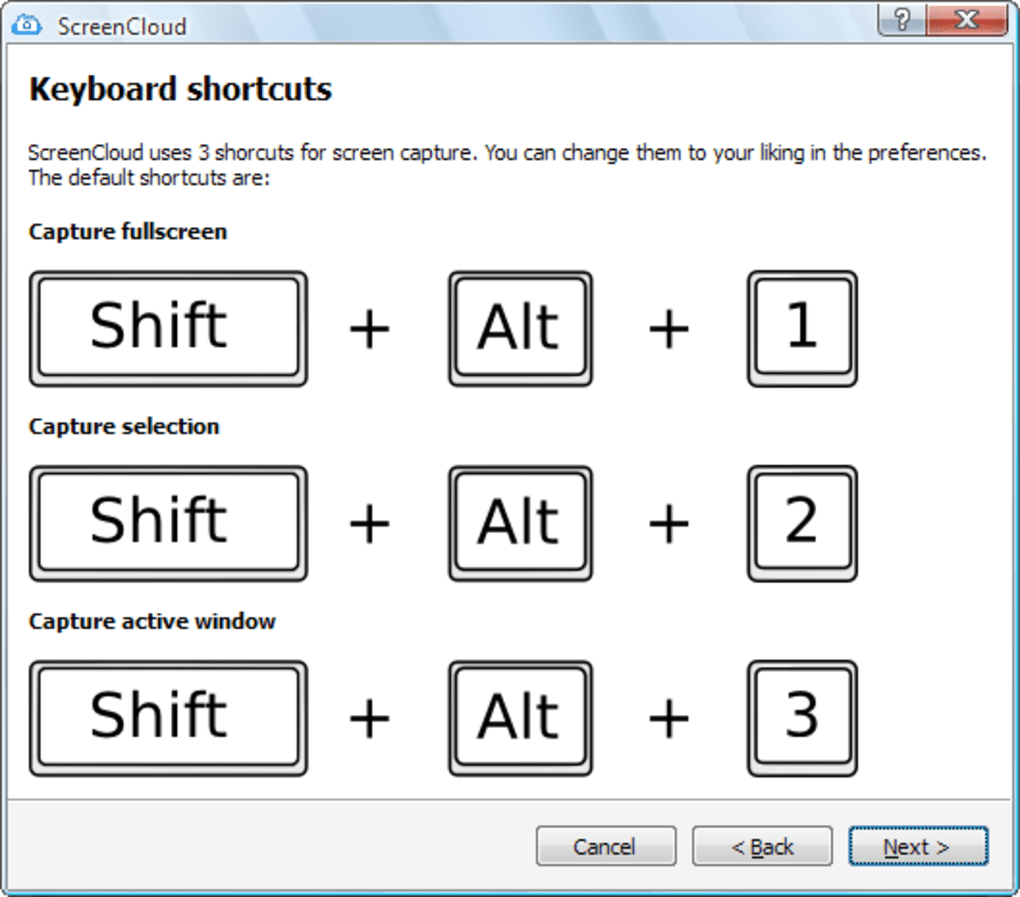
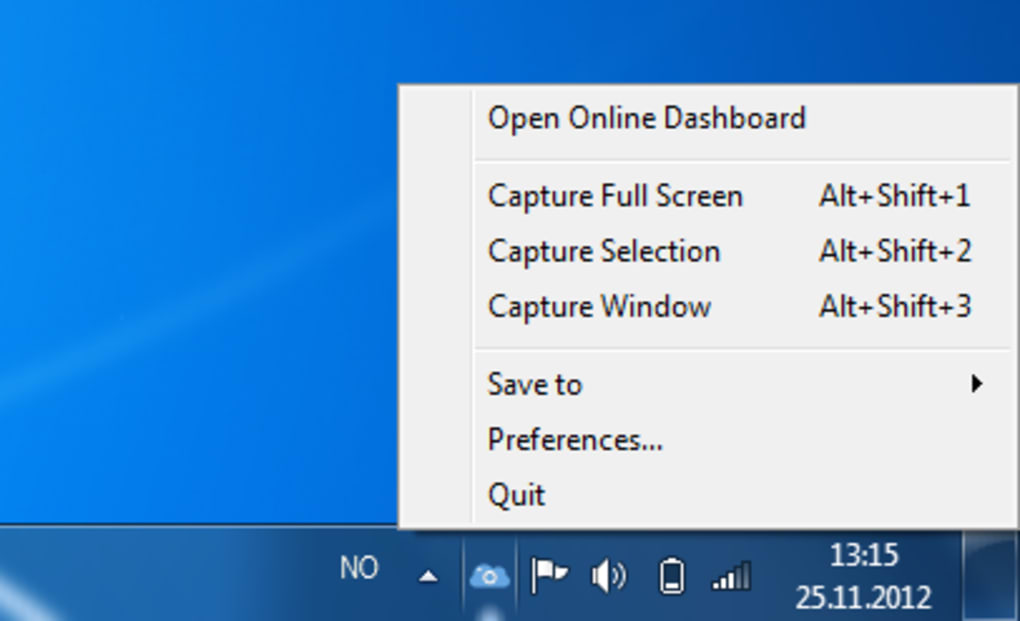
Another standout feature is its seamless integration with online sharing. Once a screenshot is taken, users can upload it directly to a cloud-based service (though the exact platform isn’t specified in the description), making it easy to share via email, social media, or collaborative tools. This feature is especially useful for remote teams, customer support agents, or educators who need to document issues or share visual instructions quickly. The software also supports keyboard shortcuts, allowing users to trigger captures without navigating through menus.
Despite being over a decade old, ScreenCloud continues to function reliably on older Windows systems. It’s compatible with Windows 2000 and earlier versions, making it a rare gem for legacy hardware users. Its minimal system requirements mean it runs smoothly even on machines with limited RAM or processing power. Additionally, the software is completely free to download and use, with no ads or in-app purchases. For users seeking a no-nonsense, secure, and fast screen capture tool, ScreenCloud remains a surprisingly viable option—especially when paired with modern cloud storage solutions.
Installation & Usage Guide
Installing ScreenCloud is a straightforward process, especially for users familiar with older Windows environments. Since the software is designed for Windows 2000 and earlier versions, it’s important to ensure your system meets these requirements before proceeding. Download the installer from the official secure download server, which ensures the file is free from malware and tampering. Once downloaded, run the executable file and follow the on-screen prompts. The installation process is quick and doesn’t require advanced configuration.
After installation, launch ScreenCloud from the Start menu or desktop shortcut. The main window is minimal, featuring a single button labeled “Capture” and a small preview area. To take a screenshot, simply click the Capture button and choose your preferred mode: full screen, active window, or a custom region. You can also use keyboard shortcuts—typically Ctrl+Shift+S or a similar combination—to trigger captures instantly. Once captured, the image is automatically saved to your default picture folder or a designated location.
For sharing, ScreenCloud provides a direct upload option. Click the “Upload” button, and the software will prompt you to log in to your cloud account (if required). After authentication, the image is uploaded and a shareable link is generated.
This link can be copied and sent via email, messaging apps, or embedded in documents. While the software doesn’t offer built-in editing tools, users can easily open the captured image in any standard image editor for cropping, annotations, or formatting. The entire workflow—from capture to sharing—is designed to be as fast and frictionless as possible.
Compatibility & System Requirements
ScreenCloud is specifically designed for older Windows operating systems, making it one of the few screen capture tools still compatible with Windows 2000 and earlier versions. This unique compatibility sets it apart from modern software that often requires Windows 7 or later. If you’re using a legacy system or a low-spec machine, ScreenCloud is an excellent choice due to its minimal system footprint. The software runs efficiently on systems with as little as 256MB of RAM and requires only a few megabytes of disk space, making it ideal for older hardware or embedded devices.
While the software is only available in English, this limitation doesn’t affect its usability for international users, as the interface is simple and icon-driven. It does not support modern platforms like Mac, Android, or iOS, so users on these systems will need to look for alternative tools. However, for Windows users on outdated systems, ScreenCloud offers a rare, functional solution. The software is also free from bloatware, ads, and telemetry, ensuring a secure and private experience.
Despite being last updated in 2012, ScreenCloud remains stable and functional. This longevity speaks to its efficient design and the fact that its core functionality—screen capture—has not changed significantly over the years. For users who prioritize reliability over cutting-edge features, this software is a dependable choice. It’s also worth noting that since the software is open to community use and distribution, it can be safely shared within organizations or educational institutions without licensing concerns.
Pros & Cons of ScreenCloud
- Pros:
- Completely free and ad-free software
- Extremely lightweight with minimal system requirements
- Compatible with Windows 2000 and earlier versions
- Simple, intuitive interface with quick access to capture tools
- Direct upload to cloud services for instant sharing
- Secure download from official server
- Keyboard shortcuts for rapid screenshot capture
- Cons:
- Outdated software with no recent updates since 2012
- Lacks video recording and advanced editing features
- Only available for Windows (no Mac, iOS, or Android support)
- Interface is basic and lacks modern design elements
- Cloud upload service details are not clearly documented
Frequently Asked Questions (FAQ)
- Is ScreenCloud free to download and use?
Yes, ScreenCloud is completely free to download and use. There are no hidden costs, in-app purchases, or advertisements. It’s ideal for users seeking a no-cost solution for screen capture.
- Can I use ScreenCloud on Windows 10 or Windows 11?
Not officially. ScreenCloud was designed for Windows 2000 and earlier versions. While it may run on newer systems via compatibility mode, there’s no guarantee of stability or performance. Users are advised to test it carefully.
- Does ScreenCloud support video recording?
No. ScreenCloud is focused solely on static screenshot capture. For video recording, consider alternatives like oCam or FastStone Capture.
- How do I share my screenshots with others?
Through cloud upload. After capturing a screenshot, you can use the built-in upload feature to send it to a cloud service. A shareable link is generated, which can be copied and sent via email or messaging apps.
- Is ScreenCloud safe to download?
Yes. The software is downloaded from a secure server, and no malware or spyware has been reported. Its long-standing presence in the software catalog and consistent download numbers suggest a trustworthy reputation.
Final Verdict & Call to Action
While ScreenCloud may not offer the modern features found in today’s screen capture tools, its simplicity, lightweight design, and compatibility with legacy systems make it a unique and valuable resource. For users with older Windows machines or those who need a no-frills, secure, and fast way to capture and share screenshots, ScreenCloud remains a solid choice. It’s especially useful in educational settings, technical support, or environments where software updates are restricted.
Despite its age, the software continues to deliver on its core promise: capturing screens quickly and sharing them easily. If you’re looking for a reliable, free, and secure screen capture tool for Windows, and you’re not on a modern OS, download ScreenCloud today and experience a piece of software history that still works today.







